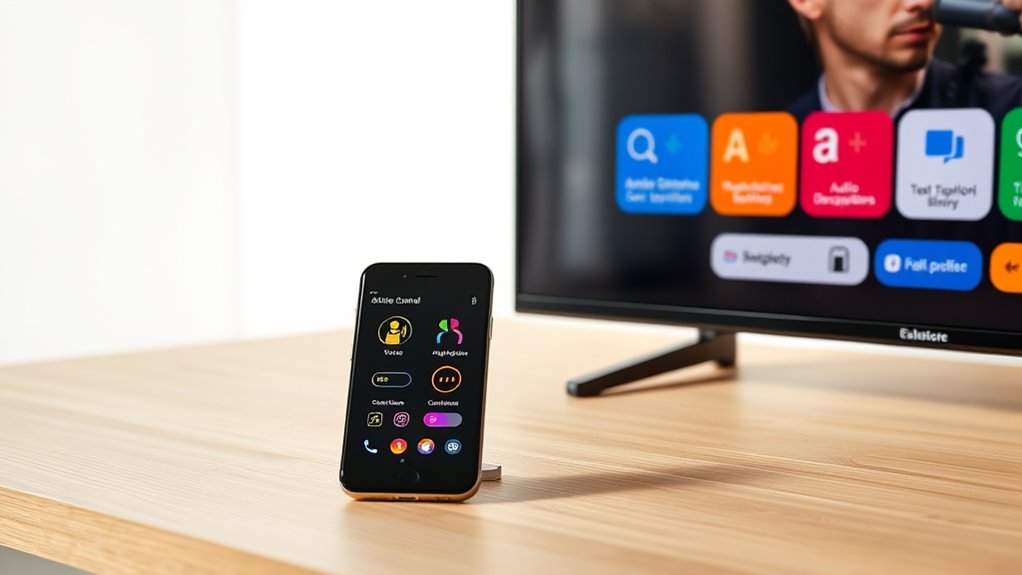

Accessibility settings on your phones and TVs help make digital technology easier to use for everyone. They include features like voice control, which lets you operate devices hands-free, and screen magnification, which enlarges content for better visibility. These tools promote independence and comfort, especially if you have visual or mobility challenges. By customizing these options, you can create an inclusive digital experience tailored to your needs. Keep exploring to discover how to maximize these helpful features.
Key Takeaways
- Accessibility settings on phones and TVs enable customization of features like voice control and screen magnification for diverse user needs.
- Voice control allows hands-free operation, ideal for users with mobility challenges or visual impairments.
- Screen magnification tools help users with visual impairments by enlarging content for easier viewing.
- Device settings can be personalized, including zoom levels and voice commands, to promote an inclusive digital experience.
- These enhancements foster confident, effortless device use and support an inclusive digital environment for all users.

In today’s digital age, accessibility settings on phones and TVs have become essential tools for guiding everyone can use their devices comfortably. These features are designed to break down barriers and cater to a wide range of needs, making technology more inclusive. Two of the most impactful options are voice control and screen magnification, which can transform how you interact with your devices daily.
Voice control allows you to operate your phone or TV hands-free, giving you the power to open apps, adjust volume, steer menus, and even send messages simply by speaking. If you find it difficult to use touchscreens or physical buttons, voice control offers a seamless alternative. You can activate it easily through your device’s accessibility settings, often by saying a wake word like “Hey Siri” or “Hey Google.” Once enabled, it becomes an intuitive way to perform tasks without strain or frustration. Plus, voice control adapts to your speech patterns, so you don’t have to worry about perfect pronunciation. This feature is especially helpful for users with mobility challenges, arthritis, or visual impairments, as it minimizes the need for fine motor skills.
Voice control enables hands-free device operation, ideal for those with mobility challenges or visual impairments.
Screen magnification is another powerful accessibility tool that enlarges content on your device’s display, making text, images, and icons easier to see. When activated, you can zoom into specific areas of the screen with simple gestures or shortcuts, reducing eye strain and improving readability. For instance, on smartphones, you might double-tap with three fingers to zoom in, then drag to direct the magnified view. On smart TVs, settings often allow you to increase font size or enable a magnified view of the entire screen. This feature is especially useful for users with visual impairments or age-related vision decline. It assures that you can enjoy your content without squinting or straining your eyes, fostering independence and comfort.
Both voice control and screen magnification are customizable, allowing you to tailor these features to your preferences. You can set up voice commands for common actions or adjust the zoom level for best viewing. These settings are typically found in the accessibility menu of your device, and many devices offer quick toggle options for instant access. By taking advantage of these features, you’re not only making your devices easier to use but also promoting a more inclusive digital environment. Whether you’re guiding your phone during a walk or adjusting your TV’s display for better clarity, these tools empower you to interact with technology confidently and effortlessly.
Frequently Asked Questions
Can Accessibility Settings Be Customized for Individual Apps?
Yes, accessibility settings can be customized for individual apps, allowing you to tailor your experience with app specific customization. This means you can enable personalized accessibility features like text size, contrast, or narration for each app based on your needs. You simply access the app’s settings or your device’s accessibility menu to adjust options per app, ensuring a more comfortable and inclusive experience tailored exactly to what you need.
Are Accessibility Features Available on Older Phone and TV Models?
Think of your older phone or TV as a vintage car—charming but with limited features. Accessibility features on legacy devices often face compatibility issues, making some options unavailable. While many basic functions might still work, advanced accessibility settings could be hindered by feature limitations and outdated technology. You may not get the full suite of options, but some essential features could still be accessible, depending on your device’s age and model.
How Secure Are My Accessibility Settings and Data?
Your accessibility settings and data are generally secure thanks to robust security protocols implemented by device manufacturers and app developers. They use encryption and regular updates to safeguard your data privacy. However, you should still be cautious by keeping your software up-to-date, avoiding suspicious links, and reviewing app permissions. This way, you help ensure your accessibility data remains private and protected against potential threats or breaches.
Can Accessibility Options Be Shared Across Multiple Devices?
You can share accessibility options across multiple devices through device synchronization and cloud sharing features. When you enable these, your preferred accessibility settings automatically sync to all compatible devices connected to the same account. This makes it easier to maintain consistent accessibility support, whether on your phone, TV, or other gadgets. Just verify your devices are connected and signed into the same cloud account to enjoy seamless accessibility across your digital ecosystem.
Do Accessibility Features Impact Device Performance or Battery Life?
You might wonder if accessibility features affect device performance or battery life. Generally, these options are designed to optimize user experience without markedly impacting device performance or battery usage. Features like screen readers or magnifiers are optimized for efficiency, but enabling multiple settings simultaneously can slightly increase resource consumption. To maintain smooth device operation, you should adjust accessibility settings based on your needs, ensuring a good balance between accessibility and device optimization.
Conclusion
By exploring accessibility settings on your devices, you can enjoy a more inclusive digital experience. For example, imagine turning on text-to-speech on your phone, allowing a friend with visual impairments to read messages easily. These small adjustments make a big difference, helping everyone stay connected and independent. So, take a few minutes to customize your phone or TV—enhancing usability and ensuring that technology works for you and everyone around you.