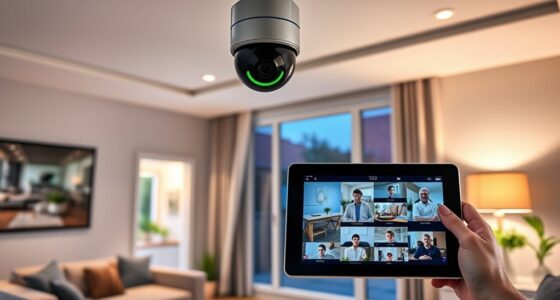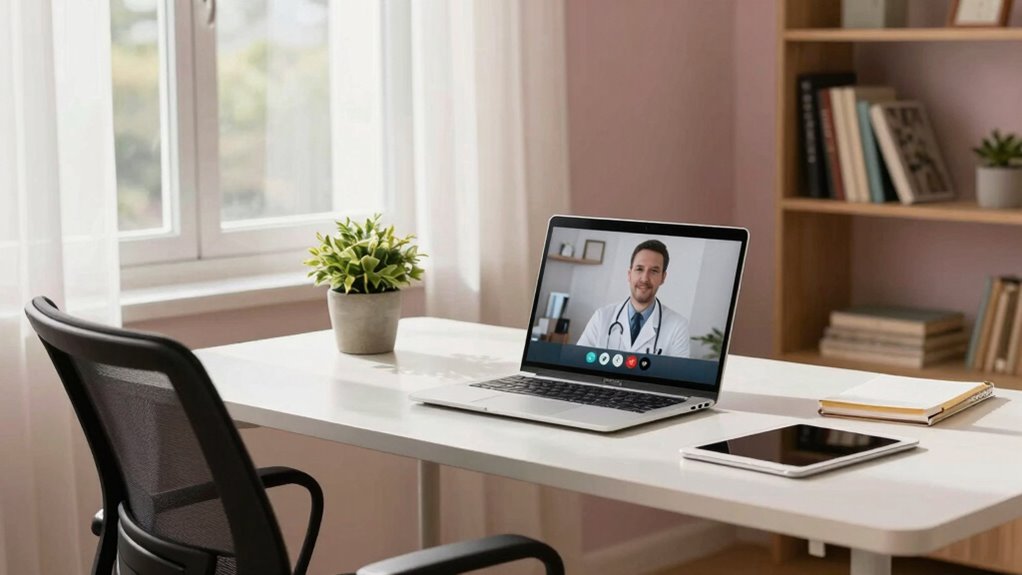

To set up a comfortable space for virtual doctor visits, choose a quiet, private area with good lighting, ideally from natural sunlight. Position your device at eye level and keep necessary health documents nearby. Use headphones to improve audio clarity and privacy. Make certain your internet connection is strong and test your device’s camera and microphone beforehand. Keep your environment free of distractions to stay focused. If you want to make your visits even more seamless, there’s more helpful tips to explore.

Get the little things that make your day delivered free with Prime
- Fast, free delivery on millions of items
- Prime Video, Amazon Music and more included
- Member-only deals all year
Key Takeaways
- Designate a quiet, private space with good lighting and a comfortable seat for focused, uninterrupted visits.
- Position your device at eye level and ensure a stable internet connection for clear visuals and sound.
- Keep medical documents and questions nearby to streamline the consultation process.
- Use headphones to improve audio clarity and protect privacy during the appointment.
- Familiarize yourself with the telehealth platform and troubleshoot common issues beforehand for a smoother experience.
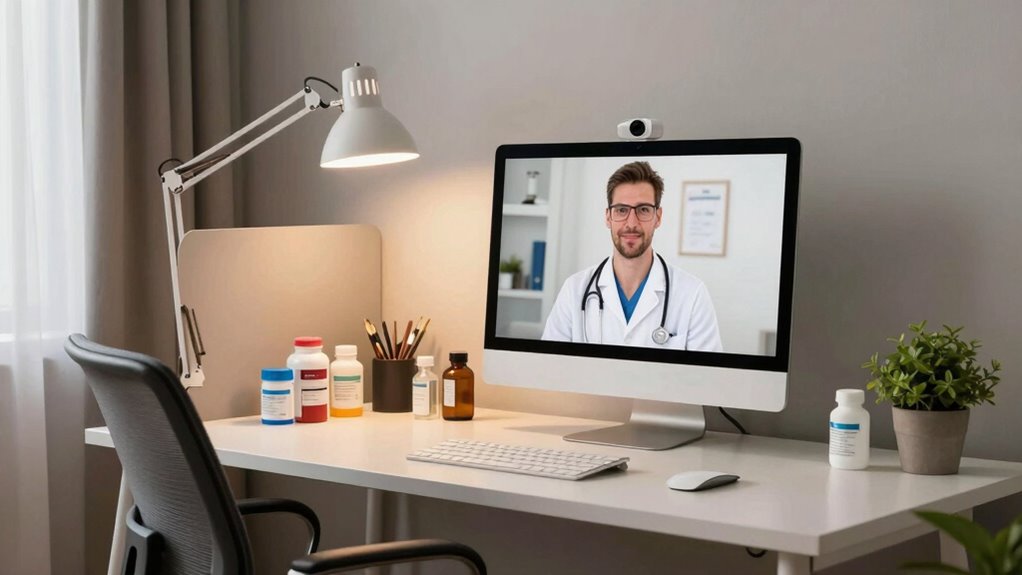
Setting up your home for virtual doctor visits is essential to guarantee smooth and effective healthcare appointments. When you prepare your space properly, you minimize disruptions and make sure your focus stays on your health. The first step is choosing a quiet, private area where you won’t be interrupted. This helps maintain telehealth privacy, making sure your confidential conversations stay between you and your healthcare provider. A well-lit space is also important; natural light is best, but if that’s not available, set up a lamp so your face is clearly visible on the screen. Clear visuals and sound reduce misunderstandings and make communication easier.
Choose a quiet, well-lit space for your virtual doctor visit to ensure privacy and clear communication.
Next, check your internet connection. A stable, high-speed Wi-Fi connection is crucial for seamless video calls. If your connection is unreliable, consider moving closer to your router or using an Ethernet cable for a more consistent link. Before the appointment, test your device’s camera and microphone to make sure they work properly. This is where tech troubleshooting comes into play—resolving common issues like audio delays or video freezing before your appointment can save you stress and time. Keep your device’s software updated and close any unnecessary programs that might interfere with the call. Having a backup device, such as a smartphone or tablet, can be handy if your primary device encounters issues during the visit.
Arrange your space so your device is at eye level. This makes the interaction feel more natural and helps your healthcare provider see your expressions clearly. Keep any necessary medical documents, your list of questions, and your health history nearby, so you’re prepared and don’t have to search for information mid-call. If privacy is a concern, avoid busy or shared areas, and consider using headphones to prevent others from overhearing your conversation. This not only enhances telehealth privacy but also improves audio clarity for both you and your doctor. Being aware of video quality and how it impacts communication can help you troubleshoot issues more effectively. Additionally, understanding the importance of privacy and creating a secure environment can help protect your personal health information during virtual visits. Establishing a private environment can also help reduce anxiety about confidential discussions. You might also find it helpful to have some basic knowledge of security protocols used by your telehealth platform to ensure your information stays protected.
Finally, familiarize yourself with the telehealth platform your provider uses. Log in early, and explore the interface so you’re comfortable maneuvering it. If tech troubleshooting becomes necessary, knowing basic troubleshooting steps—like restarting your device or reconnecting your internet—can resolve many issues quickly. To ensure a smooth experience, consider researching common connection issues and solutions beforehand. By taking these steps, you create a comfortable, private, and tech-ready environment for your virtual doctor visits, helping you focus on your health without unnecessary distractions.
Frequently Asked Questions
What Are the Best Devices for Virtual Doctor Visits?
The best devices for virtual doctor visits include a high-quality webcam and a clear microphone for accurate communication. Use a tablet or computer with good audio and video capabilities, and guarantee it has accessibility features like enlarged text or voice commands if needed. Medical equipment such as blood pressure monitors or pulse oximeters can sync with your devices, enhancing your remote consultation experience. Prioritize user-friendly devices with built-in accessibility features for comfort and ease.
How Do I Ensure My Wi-Fi Is Secure?
To keep your Wi-Fi secure, you need to lock the barn door before the horse bolts. Enable network encryption like WPA3 or WPA2, and change your default passwords to strong, unique ones. Use a reliable password manager to keep track of your login info and avoid reusing passwords. Regularly update your router’s firmware to patch vulnerabilities, and consider turning off remote management to prevent outside access.
Can I Use a Tablet Instead of a Computer?
Yes, you can definitely use a tablet instead of a computer for virtual doctor visits. Just check the device compatibility first; most telehealth platforms work smoothly on tablets. Keep screen size considerations in mind—tablets offer a larger display than smartphones, making it easier to see your doctor clearly. Make certain your tablet has a stable internet connection and a good camera for a seamless experience.
How to Troubleshoot Common Video Call Issues?
If you face video call issues, start with technical troubleshooting—check your internet connection, restart your device, and update your app. During your virtual visit, follow video call etiquette by staying focused, speaking clearly, and minimizing background noise. If problems persist, try switching devices or reconnecting. Being prepared with these tips helps guarantee smoother virtual doctor visits, making communication clearer and more effective for your health needs.
What Privacy Measures Should I Take During Virtual Visits?
A chain is only as strong as its weakest link, so protect your virtual visits. You should use encryption protocols and guarantee your video platform has robust privacy settings. Always log out after sessions, avoid public Wi-Fi, and keep your device’s security updates current. These measures help safeguard your sensitive health information and create a secure environment, making your virtual doctor visits private and worry-free.
Conclusion
Creating a cozy, well-prepared space for your virtual doctor visits gently reminds you that your health is a tender journey. When your environment feels inviting and calm, it’s easier to share openly, listen closely, and feel truly cared for. By nurturing this little corner of comfort, you’re softly encouraging your well-being to flourish. Remember, every visit becomes a small yet meaningful step toward a healthier, happier you.
NFL season / tailgating Picks
team gear
As an affiliate, we earn on qualifying purchases.